
If you’ve ever had to pay a government fee, tax, or any other official charge, you might know how painful the whole process of standing in long queues, filling out paper challans, and submitting cash or cheques at a bank can be.
To make this process simple for people, many Indian states have shifted to digital payment platforms.
One such platform is e-GRAS, which stands for Electronic Government Receipts Accounting System.
What is e-GRAS in Arunachal Pradesh?
In simple terms, it's an online platform where citizens, businesses, and government departments can create and pay government challans without having to leave the comfort of their homes, be it a state tax, a department fee, or any official charge, you can generate the challan online and pay instantly through net banking, UPI or other digital payment methods.
Think of it as the state government's way of introducing government payments into the digital age.
Like a while ago, if you needed to pay a government fee, tax, or any other charge, you'd have to deal with paper forms, stand in queues, and pay by cash or cheque, and now eGRAS does all of that digitally.
What is the Core Purpose of e-GRAS?
At its core, the system is made to bring order and clarity to the way government revenues are collected and tracked.
So that, every time a payment is made through the portal, it gets recorded instantly. This means the government always has accurate financial data at its fingertips, no waiting, no manual work and no guesswork also.
But it doesn't stop there. One of the biggest wins with eGRAS is transparency.
And since everything happens digitally and gets stored in one place, the usual headaches like errors, duplicate records, or payments going unaccounted for are largely a thing of the past.
Plus, if you ever need to double-check a payment, you don't have to go through paperwork or make phone calls.
Also, it doesn’t matter if you're a citizen or a government department, the details are available to you whenever you need them.
What are the Main Benefits of using Arunachal e-GRAS?
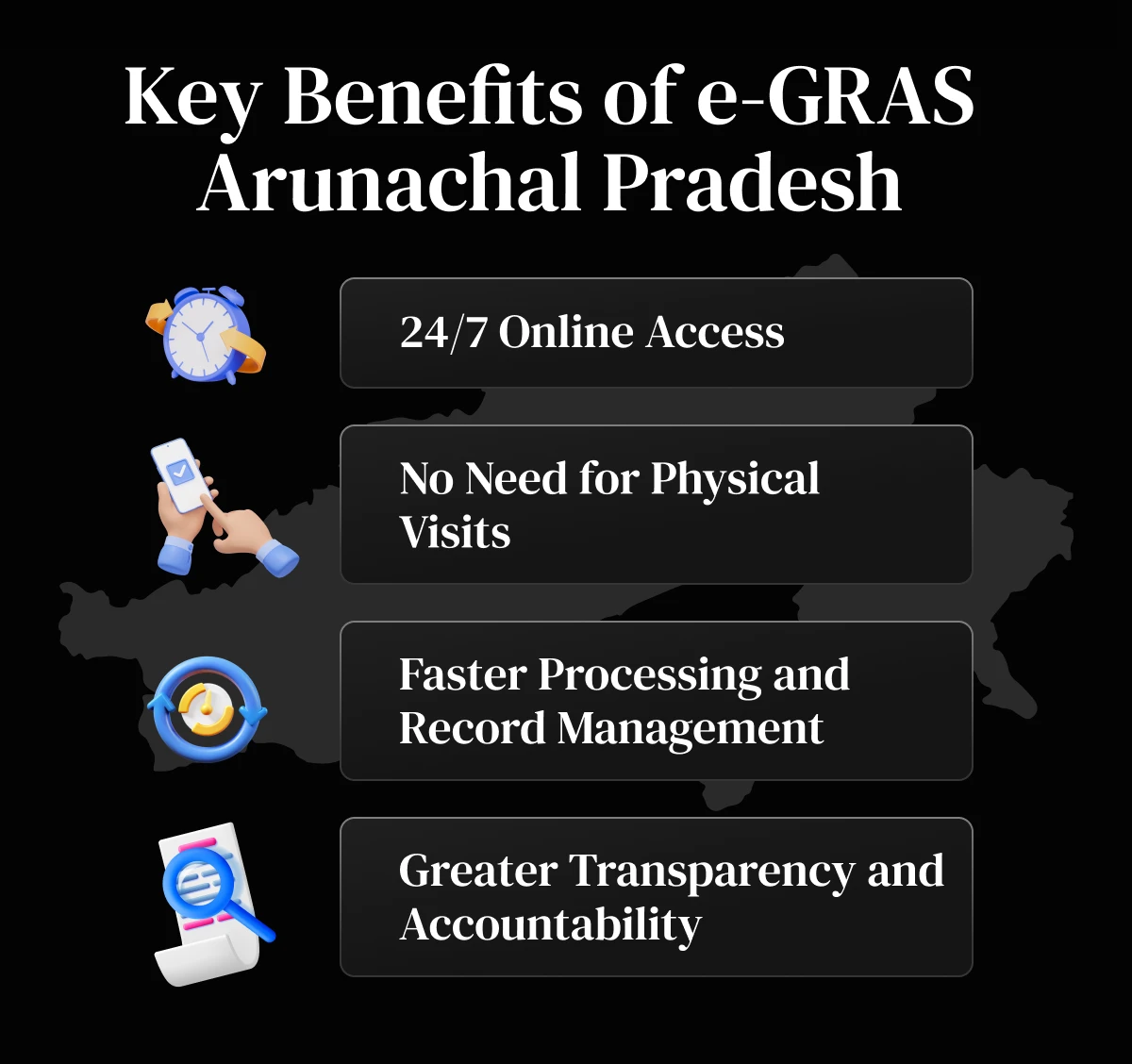
1. 24/7 Online Access
One of the best things about eGRAS is that it never closes. You can log in and make payments anytime you want, be it early morning, late at night or even weekends,
2. No Need for Physical Visits
You might remember when you had to go to a bank just to submit a challan? With eGRAS not anymore, from generating your challan to making the payment and downloading your receipt, everything happens online as you need.
3. Faster Processing and Record Management
On top of that, each and every payment made on the portal is saved and organised in the system on its own so the government departments don't have to physically sort through piles of records.
4. Greater Transparency and Accountability
Since every single transaction is recorded digitally, there's always a clear trail of it. This makes it much harder for anything to go missing, keeping the entire process honest, transparent, and smooth.
What is the overview of the e-GRAS Arunachal portal?
Now we know that, the eGRAS Arunachal portal is the state government's official go-to platform for making and managing government payments online, be it a fee, a tax, or any other charge, the portal makes the whole process quick, simple, and easy to use.
How can I find and access the Arunachal e-GRAS portal?
You can go to the portal directly at egras.arunachal.gov.in.
Once you're there you can generate challans and complete your payments without any of the usual back-and-forth.
To use it, there are basically two ways to log In
- Guest Login: This is perfect if you just need to make a quick, one-time payment and don't want to go through the hassle of creating an account.
- Registered User Login: It’s a better fit if you're a frequent user, with an account, this way you can track your payment history, manage challans, and keep all your records in one place.
What are the key features of the Arunachal e-GRAS portal?
Here are some key features of eGRAS:
1. e-Challan Generation
On the eGRAS portal, you can generate your challan digitally in just a few steps easily, just select the department, choose the purpose of payment, enter the amount, and you're good to go.
2. GRN (Government Reference Number) Generation
After that, once your payment goes through, the system generates a GRN, or Government Reference Number, think of it as your payment's unique ID.
In case you ever need to track or verify your transaction later, this is the number you'll need so it's always worth keeping it handy.
3. Digital Receipt Download
Additionally as soon as your payment is done, you can download your receipt straight from the portal and it's totally valid as official proof of payment, so you can use it for any formal requirement without any trouble.
How do I make an e-GRAS payment step-by-step?
This part might seem hectic but it’s not, making a payment through the Arunachal e-GRAS portal is actually simple and user-friendly. You can either register for an account or make a quick payment as a guest also.
Here’s how to do it:
1. With registration
If you plan to make frequent payments or want to track your payment history, registering on the portal is the best option.
Step 1: Register on the Portal
- Go to egras.arunachal.gov.in and click on the Register option.
- Fill in the required details such as name, email ID, and mobile number.
- Create a username and password.
- Verify your mobile number through the OTP verification process.
- Once the OTP is verified, your account will be created.
Step 2: Log in and Enter Payment Details
- After completing eGRAS registration Arunachal, log in to your account.
- Select the department you want to pay (for example, Transport, Tax, or Excise).
- Choose the purpose of payment.
- Enter the amount and other required details.
*Also, make sure to review the information carefully before going ahead.
Step 3: Generate e-Challan and Make Payment
And, once all the details are filled:
- Click on Generate e-Challan.
- Select your payment mode such as net banking, UPI or anything that you use for online payments and make the payment.
- Once your payment is done, the portal will automatically generate a GRN (Government Reference Number) along with a digital receipt, both of which you can download and save for your records.
And that's really all there is to it. These are the steps that you need to follow when making a payment through the eGRAS portal.
2. Without Registration
If you don’t want to create an account, you can still use eGRAS without registration through the guest payment option.
Step 1: Choose Guest Payment Option
Head over to the portal and click on the Guest User or Pay Without Registration option.
From there, you'll just need to fill in a few basic details such as your department name, your district, what the payment is for, and the amount.
Step 2: Generate Challan and Pay
After filling in all the details, all you need to do is click on the e-challan and then proceed to the payment gateway, use any methods and apps for online payment and complete your payment.
Step 3: Save the GRN for Future Reference
Once your payment is completed, the portal will generate a GRN for you.
After that you can either note down or download the receipt, as this number is important for payment verification, tracking, and future reference.
What payment methods and convenience fees apply (2026 update)?
When you make a payment on the Arunachal e-GRAS portal, you've got a few ways to pay. You can use internet banking, a debit or credit card, or even UPI. Pretty convenient, right?
Just keep in mind that depending on how you pay and how much you're paying, there might be a small extra fee added on top.
It's nothing major, just a standard gateway or convenience charge that comes with online payments.
| Payment Method | Details | Fees / Charges |
|---|---|---|
| Internet Banking | Available through multiple partner banks integrated with the e-GRAS portal. Suitable for direct payments from bank accounts. | ₹5 per transaction for payments up to ₹500; ₹10 per transaction for payments above ₹501. |
| Credit Card | Supports major card networks such as Visa, MasterCard, and American Express through the payment gateway. | Around 1% of the transaction amount is charged as a convenience fee. |
| Debit Card | Accepts Visa, RuPay, Maestro, and SBI Maestro debit cards for online payments. | 0.75% of the transaction amount for payments up to ₹2,000; 1% for transactions above ₹2,000. |
| IMPS / Mobile Banking | Instant bank transfer using mobile banking apps through the IMPS network. | ₹5 (up to ₹5,000), ₹7 (₹5,001–₹25,000), ₹8 (₹25,001–₹50,000), ₹9 (₹50,001–₹1,00,000). |
How can I search and verify my e-GRAS payment or challan status?
Now you are done with the payment but how do you know that it went through? That’s where double checking comes in.
The portal makes it really easy to find your challan details and confirm that your payment actually went through.
A lot of people check their GRN status when they notice the money has been debited from their bank account but aren't sure if the payment was fully done.
So Here's how to check your payment status:
Step 1: Head to the portal and log in
Go to the official e-GRAS portal and sign in with your registered details. Made the payment as a guest? Not a problem, you can still check your payment status without needing a full account.
Step 2: Find the "Verify Payment" or "Search Challan" option
Once you're on the dashboard, look for the Verify Payment or Challan Search section, that's exactly where you need to go to check your transaction.
Step 3: Fill in your details
After that, you'll need to enter a few basic things like your GRN (government number that you got) , your transaction or challan date, and sometimes the department name. Once you've filled that in, just hit Search.
Step 4: Check your payment status
The portal will pull up your challan details and show you if the payment went through or not. If everything's good, you'll see a confirmation that the payment was credited and you can even download your receipt from there also.
Why is it important to verify e-GRAS payments?
We all know that feeling of "did my payment actually go through?" and that's exactly why verifying your e-GRAS Arunachal payment is such a crucial step.
It's a quick way to make sure that your payment has been successfully received by the government. This usually comes in handy when:
- Your bank account was debited but you didn't receive a receipt right away
- You need official proof of payment for submissions
- You want to re-download your challan or payment receipt
What is the payment status timeline for online vs bank-processed payments?
Typically the time it takes for a transaction to appear in the system can depend on the payment method that you used.
- Online Payments: Transactions made through internet banking or cards are usually updated in real time, so you can search eGRAS challan details immediately after payment.
- Offline or Bank-Processed Payments: And in case, your challan was processed through a bank branch, it may take 1–2 working days for the payment to reflect in the portal.
Tip: If your GRN status check does not show the transaction right away, waiting for a short period and checking again usually solves the issue.
Where can I use Arunachal e-GRAS payments — which departments and payments accept e-GRAS?
The Arunachal e-GRAS portal makes it really easy for everyone to pay various state government fees online all in one place, without running around to different offices or banks, here’s where you can use them majorly:
Which government departments accept e-GRAS?
- Finance Department: Manages and tracks various state government receipts and revenue.
- Transport Department: One of the most commonly used sections on the portal. Vehicle owners can pay:Motor vehicle tax, Challans and penalties and Permit or transport-related fees.
- Excise Department: Businesses can deposit licensing fees and regulatory payments electronically, making sure of quick processing and proper documentation.
- Registration Department: Certain fees related to property transactions and documentation can also be paid through the portal.
What common payments do people make on e-GRAS?
Some everyday payments people make through the portal are:
- Vehicle taxes and transport challans
- Land revenue and government service charges
- Departmental or regulatory fees
- License and permit fees
How do I download an e-GRAS payment receipt?
Once you've made a payment on the e-GRAS portal, make sure to save your receipt.
It's your official proof of payment and you might need it for submissions or personal records and downloading it is pretty straightforward.
Just log in with your username and password, head over to the "My Payments" section on your dashboard, and find the transaction you're looking for using its GRN (Government Reference Number).
Once you've selected it, hit the download button and you'll get a PDF saved right to your device.
That PDF has everything important on it, the GRN, department name, payment purpose, amount paid, and transaction date with confirmation status.
What is the validity of the e-GRAS receipt and how long is it stored?
The good news is that you don't have to stress about losing it. The receipt is stored permanently on the portal, so you can go back and download it again anytime you need another copy.
What common e-GRAS mistakes should I avoid?
Here are some major eGRAS common errors to watch out for:
1. Entering Wrong Details
One thing to be careful about is selecting the wrong department, payment purpose, or amount can make your challan invalid.
So before you hit generate, take a moment to double-check all the details. It'll save you a lot of headache down the line.
2. Ignoring Challan Expiry
Most e-challans are only valid for about 90 days only, so don't put it off for too long. If you miss that window, you'll have to go through the process all over again.
3. Not Noting the GRN After Payment
Once your payment is done, make sure you save your GRN (Government Reference Number) right away like screenshot it, write it down, or download it. You'll need it for verification and downloading your receipt later on.
4. Rushing Through the Process
It's easy to make small mistakes when you’re in a rush, so take a minute to review everything before submitting.
5. Not Downloading the Payment Receipt
Always download your PDF receipt and store it somewhere, since without it, proving your payment officially can get hard when you actually need it.
What should I do if an e-GRAS payment fails?
It happens to the best of us you know, you've filled in all the details, hit the pay button, and something suddenly goes wrong.
Well you don’t need to panic at that time, the first thing to do when your e-GRAS payment fails is to avoid refreshing the page or hitting the back button.
Next, check your bank account to see if the amount was actually deducted, then log back into the official portal at https://egras.arunachal.gov.in to verify your transaction status using your Challan or reference number.
If the payment shows as pending, just wait for 24 to 48 hours before trying again, since transactions sometimes take a little time to update.
But if your bank was charged but the portal still shows a failed payment, try to get in touch with your bank and share the transaction reference number to raise a complaint.
For anything that still remains unresolved, reach out to the e-GRAS helpdesk with your GRN number, transaction date, amount, and a screenshot of the transaction as proof they will try to get back to with a solution as soon as possible.
What safety tips should I follow for secure e-GRAS payments?
Here are some practical ways and tips to make sure your e-GRAS payments go smoothly with safety:
1. Stick to the Official Website
This one's actually a non-negotiable, make sure to always head straight to https://egras.arunachal.gov.in when making your payment and before entering any details, take a look at your internet connection and proceed only when its stable.
2. Clean Up After Yourself
Once you are done with your payment, take a minute to clear your browser's cache, cookies, and history especially if you're using someone else’s device as you wouldn’t want your login details or payment info sitting around for the next person to stumble upon.
3. Keep an Eye on Your Bank Statements
After each and every transaction, please do a quick check on your bank or card statement to make sure the amount matches what you paid and that the GRN lines up with your payment history.
4. Don't Fall for Phishing Tricks
In case if you ever get an email or a message claiming to be from e-GRAS asking for your personal or financial details, just ignore it. The portal will never reach out asking for sensitive information that way, so it’s better to stay alert on your part.
5. Use a Secure Internet Connection
That free café Wi-Fi might be tempting, but it's not the ideal place to handle your payments, grab your coffee, go home and then use the wifi, always use a trusted, private network when making transactions to keep hackers out of the picture.